How to Remove Wan Watermark from AI Videos (2025 Guide)
How to Remove Wan Watermark from AI Videos (2025 Guide)
Alibaba's Wan platform has quickly become a popular choice for AI video generation, especially among Chinese market users. But like most AI video tools, Wan adds watermarks to generated content. If you're creating videos for YouTube, Instagram, or client projects, those watermarks can be a dealbreaker. Here's the good news: removing Wan watermarks is easier than you think. This guide shows you exactly how to get clean, professional videos without any visible marks.

Understanding Wan AI Video Watermarks
Before diving into removal methods, let's understand what you're dealing with. Wan's watermark typically appears as a semi-transparent logo or text overlay, often positioned in the corner or bottom of the video frame. Unlike static watermarks, Wan may use positioning that varies slightly across frames, making manual removal challenging.
Why Wan adds watermarks:
- Brand protection and attribution
- Differentiation between free and premium tiers
- Copyright and usage tracking
- Platform promotion
The watermark doesn't just affect aesthetics—it can limit how you use your videos commercially. Most platforms and clients require watermark-free content for professional projects.
Method 1: Use EraseVideo (Recommended for Mac Users)
EraseVideo is specifically designed to handle AI video watermarks from platforms like Wan, Sora, Runway, and more. It's the fastest and most reliable solution for Mac users who want professional results.
适用场景: Mac users needing high-quality local processing with automatic detection
Step-by-Step Process:
-
Download and Install EraseVideo
- Visit erasevideo.app and download the Mac app
- Install by dragging to your Applications folder
- Launch the app (first-time users get 2 free video processes daily)
-
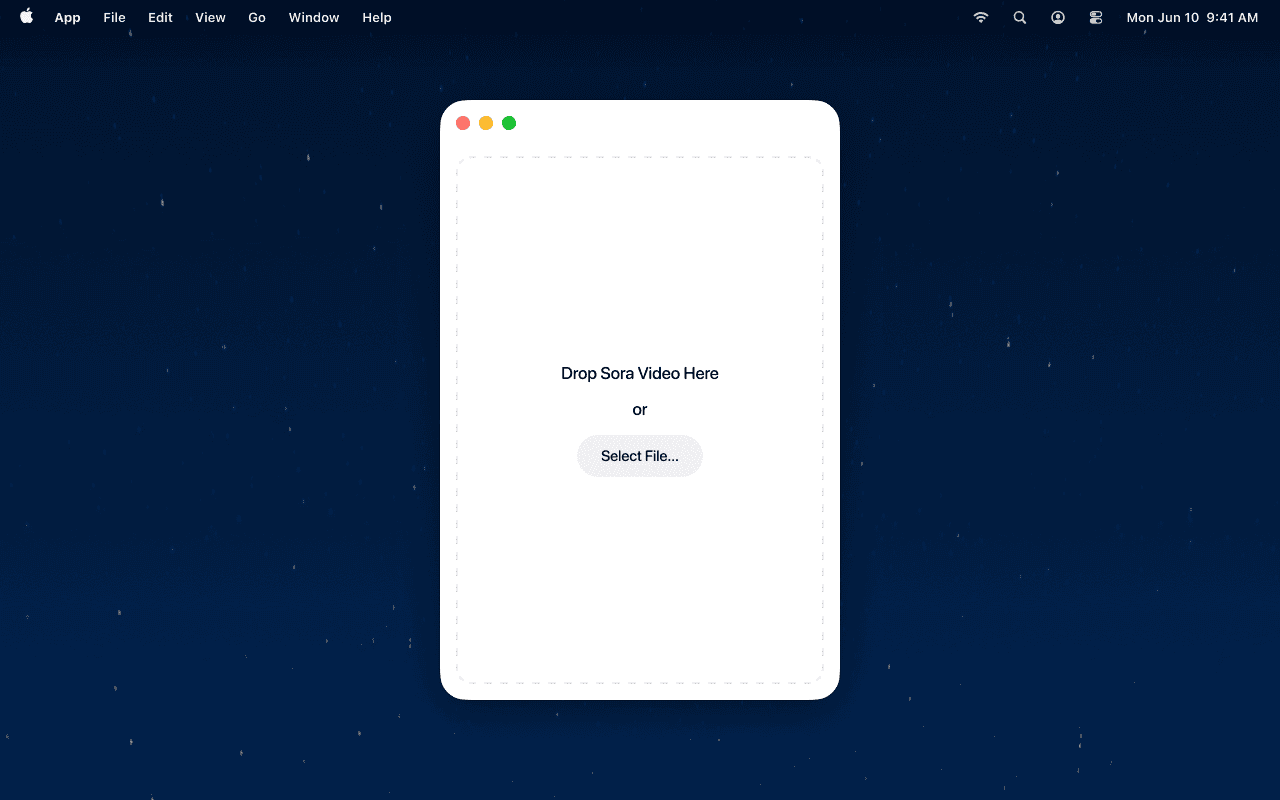
Import Your Wan Video
- Drag your Wan-generated video directly into the EraseVideo window
- Or click "Add Video" and select your file
- Supported formats: MP4, MOV, AVI, and most common video types
-
Automatic Detection
- EraseVideo automatically recognizes Wan videos
- The AI identifies watermark location and style
- No manual selection needed—completely hands-free
-
Start Processing
- Click the "Start Processing" button
- Watch the real-time progress bar
- Processing time depends on video length (typically 2-5 minutes for a 30-second clip)
-
Export Your Clean Video
- Preview the result before exporting
- Your file is saved as
[original_filename]_unmarked.mp4 - Original quality, resolution, and frame rate preserved
Why EraseVideo Works Best:
- ✅ Fully Automated: No need to manually select watermark areas like other tools
- ✅ AI-Powered Repair: Advanced inpainting technology reconstructs backgrounds naturally
- ✅ Complete Privacy: Everything processes locally on your Mac—no cloud uploads
- ✅ Quality Preservation: Maintains original resolution, frame rate, and audio tracks
- ✅ Multi-Platform Support: Works with 7+ AI video platforms including Wan, Sora, Veo, Runway, Pika, KlingAI, and TikTok
Pricing:
- Free trial: 2 videos per day
- Annual subscription: $19.9/year (best for regular users)
- Lifetime license: $49.9 (one-time payment)
Method 2: Online Watermark Removers
If you don't have a Mac or need a quick browser-based solution, online tools can help. However, they require manual watermark selection and upload your video to cloud servers.
Using HitPaw Online Watermark Remover
How it works:
- Visit HitPaw's online watermark remover
- Upload your Wan video (file size limits apply)
- Manually drag a selection box over the watermark
- Click "Remove" and wait for processing
- Download the processed video
Pros:
- No installation required
- Works on any device with a browser
- Free tier available
Cons:
- Manual selection can be tedious for moving watermarks
- Upload required (privacy concerns)
- Quality may be reduced
- Processing limits on free tier
- May leave visible blur or artifacts
Using Media.io Video Watermark Remover
How it works:
- Go to Media.io's watermark removal tool
- Upload your video file
- Use the brush tool to mark watermark areas
- Process and download the result
Pros:
- Supports multiple video formats
- Adjustable brush size for precision
- Can handle multiple watermark areas
Cons:
- Requires cloud upload
- Manual selection needed for each frame
- May struggle with semi-transparent watermarks
- Free version has watermark limits
Method 3: Video Editing Software (Advanced)
For users comfortable with video editing, tools like Adobe Premiere Pro or DaVinci Resolve offer manual watermark removal through masking and cloning.
Process Overview:
- Import video into your editing software
- Create a mask over the watermark area
- Use content-aware fill or clone stamp tools
- Render the final video
This method requires:
- Professional editing software ($20-50/month subscription)
- Significant time investment (5-30 minutes per video)
- Technical editing skills
- Frame-by-frame adjustments for moving watermarks
Best for: Users who already own editing software and need complete creative control
Comparison: Which Method Should You Choose?
| Feature | EraseVideo | Online Tools | Editing Software |
|---|---|---|---|
| Automation Level | Fully automatic | Manual selection | Fully manual |
| Processing Quality | Highest (AI repair) | Medium | Varies (skill-dependent) |
| Privacy Protection | Local processing | Cloud upload | Local |
| Speed | 2-5 min/video | 5-10 min/video | 10-30 min/video |
| Technical Skill | Beginner-friendly | Easy | Advanced |
| Cost | $19.9/year or $49.9 lifetime | Free to $10/month | $20-50/month |
| Platform Support | Wan + 6 others | Generic watermarks | Any watermark |
| Best For | Mac users, frequent use | Quick one-time jobs | Professional editors |
Tips for Best Watermark Removal Results
Regardless of which method you choose, these tips will help you get cleaner results:
1. Start with High-Quality Source Videos The better your original video quality, the easier it is to remove watermarks without artifacts. Export from Wan at the highest available resolution.
2. Check Watermark Placement Before Generation If you're still generating videos, consider composition. Watermarks over solid backgrounds are easier to remove than those over complex textures or moving subjects.
3. Process Before Additional Editing Remove watermarks first, then add your own effects, text, or branding. This prevents you from having to redo work if removal doesn't go perfectly.
4. Preview Carefully Always preview the full processed video before sharing. Check especially around the watermark area for any blur, distortion, or artifacts.
5. Keep Original Files Save your original Wan exports in case you need to re-process with different settings.
6. Batch Processing Saves Time If you have multiple Wan videos, use tools that support batch processing to remove watermarks from several videos at once.
Common Issues and Solutions
Q1: The watermark area looks blurry after removal
This happens when the removal tool can't perfectly reconstruct the background. Solutions:
- Try EraseVideo's AI repair, which specializes in natural reconstruction
- Ensure your source video is high resolution
- If using manual tools, select slightly beyond the watermark edges
Q2: Part of the watermark is still visible
Partial removal usually means:
- The watermark detection missed some areas
- Semi-transparent watermarks need specific handling
- With EraseVideo, the AI should catch this automatically
- With manual tools, you may need multiple selection passes
Q3: The video quality decreased after processing
Quality loss can result from:
- Cloud-based tools that compress videos
- Incorrect export settings
- EraseVideo maintains original quality by default
- Check your output format settings in other tools
Q4: Does removing watermarks violate Wan's terms of service?
This is an important legal consideration. Watermark removal for personal projects or content you have rights to is generally acceptable. However:
- Check Wan's specific terms of service
- Don't remove watermarks from content you don't own
- Commercial use may require premium Wan licenses
- Always respect copyright and usage rights
Q5: Can I remove Wan watermarks on Windows or mobile devices?
Currently, EraseVideo is Mac-exclusive. For Windows or mobile:
- Use online tools like HitPaw or Media.io
- These work in any browser
- Trade-off is manual selection and cloud upload
Why Wan Users Need Watermark Removal
Alibaba's Wan platform represents the next generation of AI video creation tools, particularly popular in the Chinese market. As more creators adopt Wan for:
- Social media content: Clean videos perform better on platforms like Douyin, Xiaohongshu, and Bilibili
- Marketing materials: Professional client work requires unbranded videos
- Portfolio projects: Showcasing your creativity without platform attribution
- Commercial projects: Licensing requirements often prohibit third-party watermarks
The ability to export watermark-free videos becomes essential. While Wan may eventually offer premium watermark-free exports, current users need reliable removal solutions.
The Technology Behind EraseVideo's Wan Support
EraseVideo specifically recognizes Wan's watermark patterns because it's one of seven AI video platforms in its detection database. Here's how the technology works:
Platform Recognition:
- Analyzes video metadata and visual signatures
- Identifies Wan-specific watermark characteristics
- Automatically adjusts removal algorithms
Smart Watermark Detection:
- Scans all frames for watermark presence
- Handles both static and moving watermarks
- Detects semi-transparent overlays
AI-Powered Inpainting:
- Uses ProRes 422 encoding for maximum quality
- Reconstructs backgrounds intelligently
- Matches surrounding colors and textures
- Ensures seamless blending
Quality Preservation:
- Maintains original resolution and frame rate
- Preserves audio tracks completely
- No generational quality loss
This specialized approach is why EraseVideo delivers superior results compared to generic watermark removers.
Conclusion
Removing Wan watermarks doesn't have to be complicated. For Mac users, EraseVideo offers the fastest, highest-quality solution with its automated AI-powered approach. You simply drag in your video, let the software detect and remove the watermark, and export a clean result—all processed locally on your machine.
If you're on Windows or need a free option, online tools like HitPaw or Media.io can work, though they require manual watermark selection and cloud uploads. Professional editors might prefer the control of tools like Premiere Pro, but that comes with a steeper learning curve and time investment.
The key takeaway: clean, professional videos from Wan are absolutely achievable. Whether you're creating content for social media, client projects, or your portfolio, you now have the tools and knowledge to remove those watermarks effectively.
Ready to try EraseVideo?
- Free trial: Process 2 videos daily at no cost
- Annual plan: $19.9/year for unlimited processing
- Lifetime license: $49.9 one-time payment
Related Articles
Related Articles

Sora vs Veo 3: Which AI Video Tool is Better in 2025?
Compare Sora and Veo 3 head-to-head. Discover which AI video generator delivers better quality, handles watermarks properly, and fits your workflow in 2025.

Best TikTok Watermark Removers for Mac in 2025 (Top 5)
Discover the top 5 TikTok watermark removers for Mac users in 2025. Compare features, pricing, and quality to find the perfect tool for your content creation needs.
How to Remove TikTok Watermark in 3 Easy Steps (2025)
Learn how to remove TikTok watermarks from your videos using proven methods. Compare online tools vs desktop software for best results.