7 Best Free AI Watermark Removers for Mac Users (2025)
7 Best Free AI Watermark Removers for Mac Users (2025)
You've just created an amazing AI-generated video using Sora, Runway, or Veo, but there's one problem: that persistent watermark stamped across your content. As a Mac user working with AI video platforms, you need a solution that's both free (or at least affordable) and actually works without destroying your video quality.
The good news? AI watermark removal technology has advanced dramatically in 2025. Whether you're a content creator on a tight budget, testing tools before committing to a paid subscription, or just need to process a few videos occasionally, this guide will help you find the right free watermark remover for your Mac.
Let's explore seven practical options, starting with the most powerful local solutions and moving through web-based alternatives.

Why Free Watermark Removers Matter for Mac Users
Mac users face a unique challenge: many popular watermark removal tools are Windows-only or require complex workarounds. Meanwhile, AI video platforms like Sora, Veo, and Runway have exploded in popularity, creating massive demand for watermark removal solutions.
Here's what makes free options particularly attractive:
Budget constraints: Not everyone can justify $50-100/month subscriptions when they only process a handful of videos Testing phase: You want to try before committing to annual plans Occasional use: Processing 2-3 videos per month doesn't warrant premium pricing Privacy concerns: Free doesn't have to mean compromising your video data
The catch? Most "free" tools come with limitations—either in daily usage, video quality, or processing capabilities. The key is finding which limitations you can live with.
Method 1: EraseVideo (Best Free Trial + Local Processing)
适用场景: Mac users who value privacy, quality, and automation
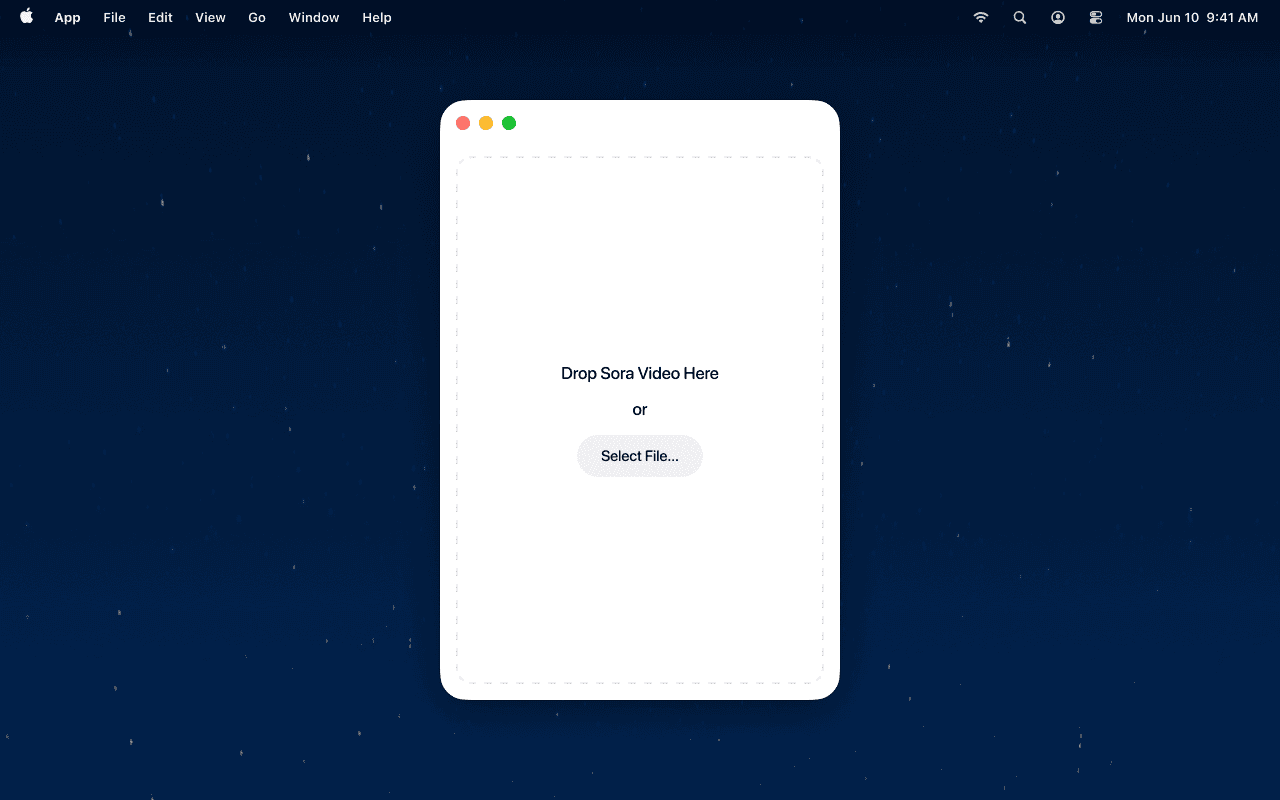
EraseVideo stands out as the only Mac-native solution that combines AI intelligence with completely local processing. Unlike web tools that upload your videos to cloud servers, everything happens on your Mac.
How It Works
- Download EraseVideo from erasevideo.app
- Drag your watermarked video into the app window
- EraseVideo automatically detects which AI platform created your video (Sora, Veo, Runway, Pika, KlingAI, TikTok, or Wan)
- The AI locates the watermark position—no manual selection needed
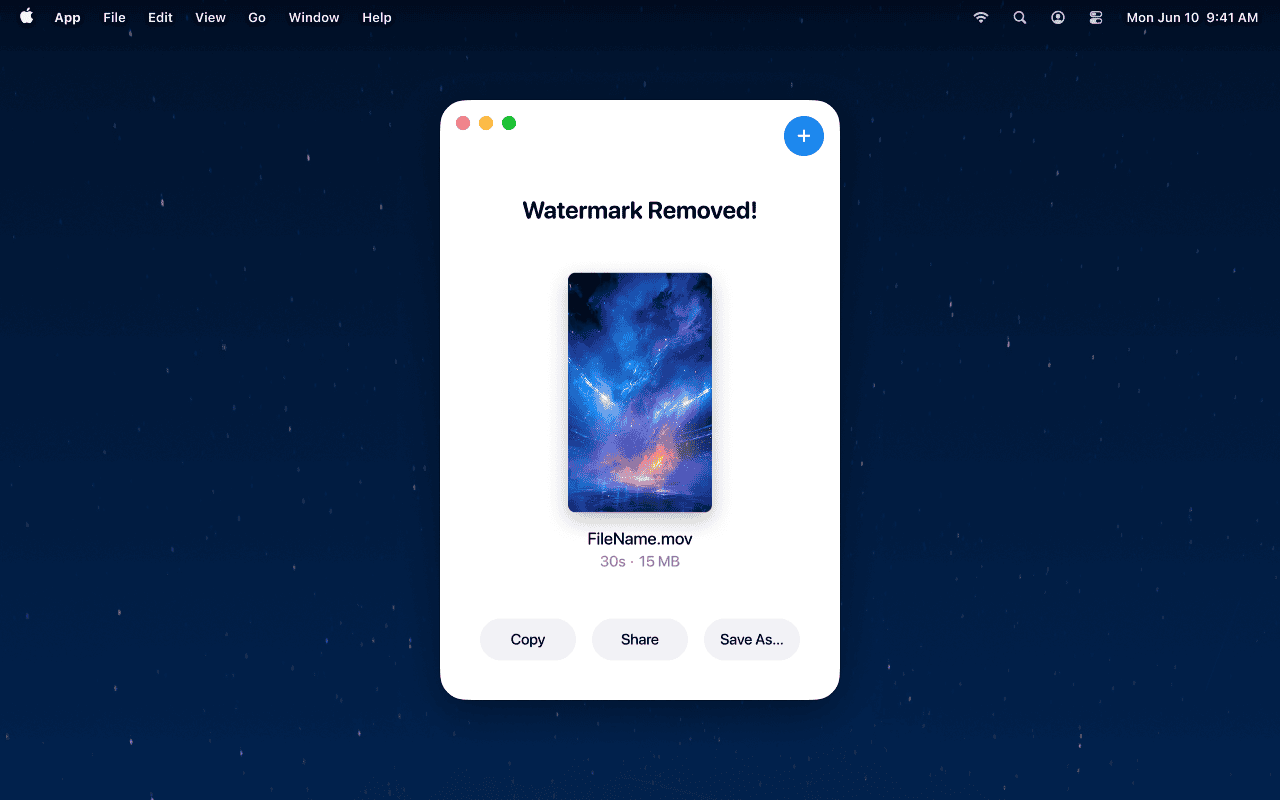
- Click "Start Processing" and watch the progress bar
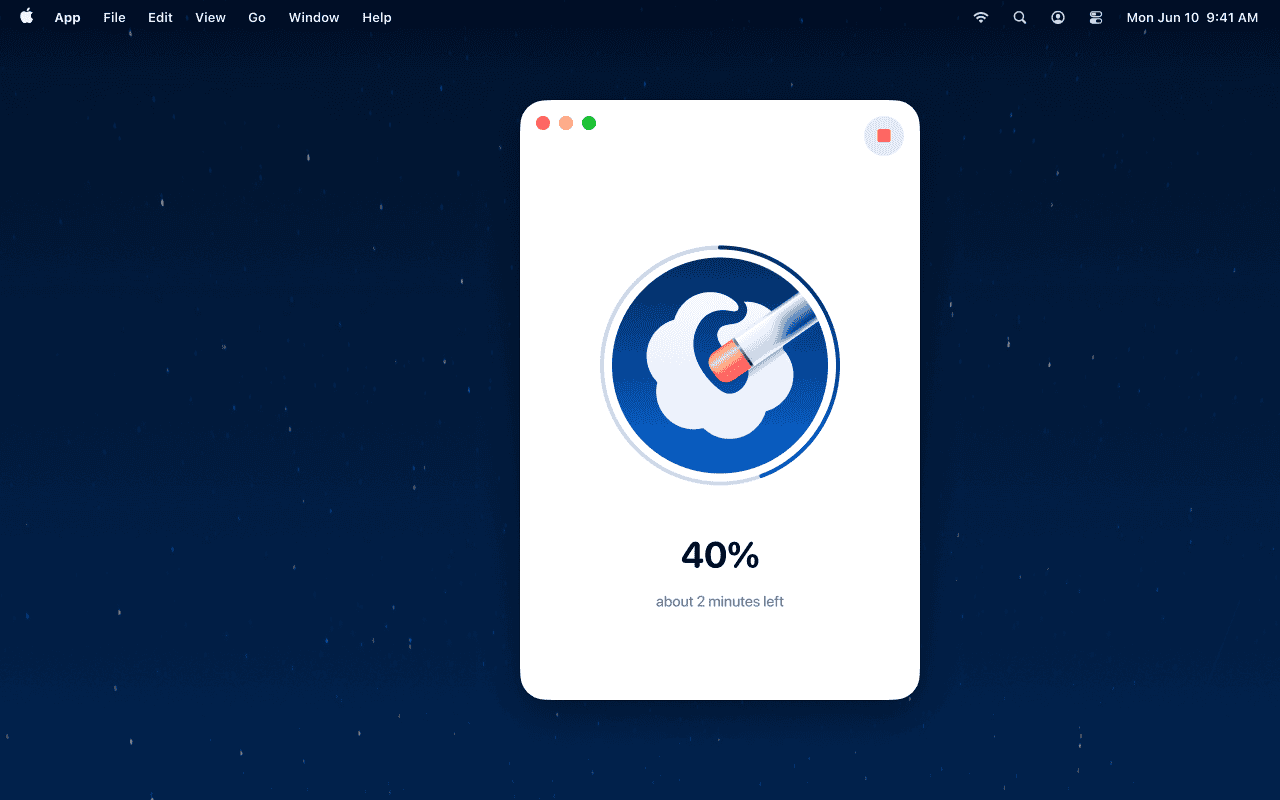
- Export your clean video (saved as originalname_unmarked.mp4)
What Makes It Free
EraseVideo offers 2 free video processes per day. This is genuinely free—no credit card required, no watermarks added to your output, no quality degradation. For casual users or those testing AI video platforms, this daily allowance is often sufficient.
Key Advantages
- ✅ Fully automatic: No manual watermark selection or adjustment needed
- ✅ Superior quality: Uses ProRes encoding to maintain original resolution, framerate, and color accuracy
- ✅ Privacy-first: Zero cloud uploads—your videos never leave your Mac
- ✅ Smart platform recognition: Automatically adapts to 7+ different AI video watermark styles
- ✅ Natural edge blending: AI-powered inpainting creates seamless results without visible artifacts
Honest Limitations
- ⚠️ Free tier limited to 2 videos/day
- ⚠️ Processing can't be paused mid-way
- ⚠️ No batch processing in free version
Pricing Beyond Free
If you need more capacity:
- Annual subscription: $19.9/year (best for regular users)
- Lifetime license: $49.9 one-time payment (cost-effective for long-term use)
Method 2: WatermarkRemover.io (Web-Based Convenience)
Suitable for: Quick jobs when you don't want to install software
This browser-based tool works on any Mac without installation. Simply visit the website, upload your video, and download the processed result.
How to Use
- Navigate to watermarkremover.io in Safari or Chrome
- Click "Upload" or drag your video file
- Wait for automatic watermark detection
- Preview the result in split-screen view
- Download your watermark-free video
Free Tier Details
The tool offers free processing with these constraints:
- Maximum 2-minute video length
- Resolution capped at 1080p
- No guarantee of removal quality on complex watermarks
Advantages
- ✅ No installation required
- ✅ Works on any Mac browser
- ✅ Split-screen preview before downloading
- ✅ Supports MP4, MOV, and WebM formats
Drawbacks Compared to EraseVideo
- ❌ Privacy risk: Your videos are uploaded to their servers
- ❌ Quality inconsistency: Cloud-based AI may struggle with complex watermarks
- ❌ Limited control: No way to adjust detection or processing parameters
- ❌ Internet dependency: Requires stable, fast connection for large files
Method 3: Pixelbin Watermark Remover (Developer-Friendly Option)
Best for: Tech-savvy users who might need API access later
Pixelbin started as an image transformation platform and recently added video watermark removal. It's particularly interesting if you're a developer or might need to automate watermark removal in the future.
Using Pixelbin Free Tier
- Create a free account at pixelbin.io
- Navigate to the watermark remover tool
- Upload your video (or paste a URL)
- Process with automatic AI detection
- Download in original or enhanced quality
Free Plan Limitations
- 15GB storage included
- 45 monthly credits (roughly 15-20 video processes depending on file size)
- Maximum 2-minute video length
What Sets It Apart
- ✅ API access: Free tier includes API tokens for automation
- ✅ Multiple file formats: Supports PNG, JPG, HEIC images plus videos
- ✅ Developer SDKs: Libraries for JavaScript, Python, PHP, and more
- ✅ Batch processing: Available even in free tier (subject to credit limits)
Notable Limitations
- ❌ Credit system complexity: Harder to predict how many videos you can process
- ❌ Cloud dependency: Same privacy concerns as other web tools
- ❌ Learning curve: More complex interface than simple upload tools
Method 4: Remove Watermark AI Retouch (Mobile App for Mac)
For users who: Prefer working on iPad or want a mobile solution
This App Store application works on Mac through Apple Silicon compatibility. Originally designed for iPhone, it runs smoothly on M1/M2/M3 Macs.
Installation and Use
- Download from Mac App Store (search "Remove Watermark AI Retouch")
- Open the app and grant photo library access
- Select your watermarked video
- Let AI detect and remove watermarks
- Save to your library or export
Free vs. Paid Features
The app is free to download with in-app purchases for unlimited processing. The free version includes:
- Watermark removal with AI detection
- Basic photo editing tools
- Ad-supported experience
Pros
- ✅ Native Mac App Store distribution
- ✅ Simple, mobile-first interface
- ✅ Works offline after download
Cons
- ❌ Limited video support: Primarily designed for images
- ❌ Lower quality: Not optimized for high-resolution AI video
- ❌ Ads in free version: Can interrupt workflow
- ❌ Less precise: Generic watermark detection vs. platform-specific AI
Method 5: GIMP with Resynthesizer Plugin (Free & Open Source)
For users who: Want complete control and don't mind technical setup
GIMP (GNU Image Manipulation Program) is the free alternative to Photoshop. With the Resynthesizer plugin, you can manually remove watermarks from video frames.
Setup Process
- Download GIMP for Mac from gimp.org
- Install the Resynthesizer plugin
- Extract video frames using FFmpeg
- Use "Heal Selection" tool on watermarked areas
- Reassemble frames into video
Why This Is Truly Free
GIMP is open-source software with no limitations, trials, or paid tiers. Everything is free forever.
The Reality Check
- ⚠️ Extremely time-consuming: You must process each frame individually
- ⚠️ Technical expertise required: Comfortable with command-line tools and manual editing
- ⚠️ Quality varies: Depends entirely on your skill level
- ⚠️ Not practical for video: Fine for single images, nearly impossible for 30fps video
Verdict: Only viable for single-frame watermark removal or educational purposes. For actual video work, consider other options.
Method 6: Kapwing Online Video Editor (Freemium Web Tool)
Ideal for: Users who need light editing beyond just watermark removal
Kapwing offers a comprehensive online video editor with watermark removal as one feature among many.
Using Kapwing for Watermark Removal
- Sign up for free account at kapwing.com
- Upload your video to the editor
- Use the "Remove Object" tool to manually select watermark
- Click "Remove" and let AI process
- Export video (with Kapwing watermark in free version)
Free Tier Limitations
- Videos exported with Kapwing branding
- 720p maximum resolution
- Limited processing time per month
- Projects deleted after 30 days
When It Makes Sense
Kapwing is worth considering if you need additional editing features like:
- Trimming and cutting
- Adding subtitles
- Transitions and effects
- Collaborative editing
Watermark Removal Drawbacks
- ❌ Adds its own watermark: Defeats the purpose for many users
- ❌ Manual selection required: No automatic detection
- ❌ Resolution limits: Not suitable for high-quality AI video
- ❌ Removal quality: Hit-or-miss depending on watermark complexity
Method 7: Adobe Express (Free Tier with Limitations)
For users who: Already use Adobe products or need professional integration
Adobe Express (formerly Adobe Spark) includes basic object removal tools that can handle simple watermarks.
Access and Usage
- Create free Adobe account
- Open Adobe Express web app
- Upload video or image
- Use "Remove Background" or quick actions
- Manual touch-up with available tools
Free Plan Constraints
- Limited to 2GB cloud storage
- Basic removal tools only (advanced features require paid plan)
- Adobe watermark on exports
- Maximum 2-minute video length
Worth Considering If...
- You already have Adobe Creative Cloud (use Photoshop's Content-Aware Fill instead)
- You need quick edits for social media drafts
- You're willing to upgrade to paid tier eventually
Why It's Not Ideal for AI Video Watermarks
- ❌ Not specialized: Generic tools vs. AI-trained watermark detection
- ❌ Requires paid upgrade: Free tier too limited for serious work
- ❌ Cloud-based: Privacy concerns similar to other web tools
- ❌ Manual process: Time-consuming for video content
Feature Comparison: Which Tool Is Right for You?
Here's how these seven options stack up across key criteria:
| Feature | EraseVideo | WatermarkRemover.io | Pixelbin | Mobile App | GIMP | Kapwing | Adobe Express |
|---|---|---|---|---|---|---|---|
| Truly Free | 2/day limit | Yes with limits | 45 credits/mo | Limited | Unlimited | With watermark | Limited |
| Automatic Detection | ✅ Yes | ✅ Yes | ✅ Yes | ✅ Yes | ❌ Manual | ❌ Manual | ❌ Manual |
| Privacy (Local) | ✅ 100% | ❌ Cloud | ❌ Cloud | ⚠️ Hybrid | ✅ Local | ❌ Cloud | ❌ Cloud |
| Quality Output | Excellent | Good | Good | Fair | Varies | Fair | Good |
| Mac Native | ✅ Yes | N/A (Web) | N/A (Web) | ✅ App Store | ✅ Yes | N/A (Web) | N/A (Web) |
| Video Length | Unlimited* | 2 min | 2 min | Varies | Unlimited | Limited | 2 min |
| Best For | AI videos | Quick jobs | Developers | Casual use | Learning | Multi-edit | Adobe users |
*Unlimited in paid tiers; free tier processes any length but caps daily volume
How to Choose Your Best Free Option
Your ideal tool depends on your specific situation. Here's a decision framework:
Choose EraseVideo if you...
- Process AI platform videos (Sora, Runway, Veo, etc.)
- Need 2 or fewer videos per day
- Value privacy and local processing
- Want the highest quality output
- Prefer automation over manual work
- Might upgrade to paid tier later
Choose WatermarkRemover.io if you...
- Need instant access without installation
- Have stable internet connection
- Process videos occasionally
- Don't mind cloud upload
- Want simple drag-and-drop interface
Choose Pixelbin if you...
- Have developer skills or interests
- Might need API access eventually
- Want flexibility across images and videos
- Can work within credit system
Choose GIMP if you...
- Only need single-frame watermark removal
- Want to learn image manipulation
- Have time for manual editing
- Need completely free, unlimited solution
Stick with paid tools if you...
- Process 10+ videos daily
- Need batch processing
- Require commercial license
- Want priority support
Privacy and Legal Considerations
Before removing any watermark, understand two critical aspects:
Privacy: Where Does Your Video Go?
Local processing (EraseVideo, GIMP):
- Videos stay on your Mac
- No internet connection required after download
- Zero data collection or analysis
- Complete control over your content
Cloud-based tools (WatermarkRemover.io, Pixelbin, Kapwing, Adobe):
- Videos uploaded to company servers
- Subject to terms of service and privacy policies
- Potential for data retention or analysis
- Internet required throughout process
Legal: When Is Watermark Removal Allowed?
⚖️ Generally acceptable:
- Removing watermarks from your own AI-generated videos
- Processing content you have rights to use
- Personal, non-commercial projects
- Testing videos before publication
⚠️ Legally questionable:
- Removing watermarks to hide content source
- Using processed videos commercially without platform permission
- Violating AI platform terms of service
- Distributing others' watermarked content
Pro tip: Check each AI video platform's terms. Some (like Sora) allow watermark removal for content you created, while others may prohibit it.
Tips for Best Results with Free Tools
Maximize your watermark removal quality regardless of which tool you choose:
1. Start with Highest Quality Source
Upload the original exported file from your AI platform, not a re-encoded or compressed version. Higher resolution input means better removal results.
2. Process Videos in Good Lighting
Watermarks on dark or complex backgrounds are harder to remove cleanly. If possible, regenerate your AI video with simpler backgrounds where watermarks appear.
3. Preview Before Final Export
Always use preview features to check removal quality before downloading. Look for:
- Blurry edges around former watermark position
- Color mismatches
- Ghosting or artifacts
- Unnatural textures
4. Know When to Use Manual Touch-Up
Even the best AI sometimes leaves traces. For professional projects, consider:
- Light manual retouching in video editing software
- Cropping slightly to exclude problematic areas
- Adding subtle overlays to distract from imperfect removal
5. Respect Daily Limits Strategically
If using EraseVideo's 2-video daily free tier, process your most important videos first. Save test renders or drafts for less critical times.
Common Problems and Solutions
Issue: "Watermark not fully removed"
Solution:
- Try a different tool—each AI has strengths with different watermark types
- Use EraseVideo for AI platform videos specifically (Sora, Runway, etc.)
- Check if watermark has multiple layers (logo + text)
- Increase source video quality before processing
Issue: "Video quality degraded after removal"
Solution:
- Use local tools like EraseVideo to avoid compression
- Export in same format as original (don't convert MP4 to MOV unnecessarily)
- Avoid web tools that automatically downscale to save bandwidth
Issue: "Processing takes forever"
Solution:
- Close other apps to free up Mac resources
- Process shorter clips first to test
- Use web tools if your Mac is older (offloads processing to cloud)
- Consider that high-quality AI removal requires time—EraseVideo typically processes 1080p/60fps in 2-5 minutes
Issue: "Tool can't detect watermark"
Solution:
- Ensure watermark is visible in video (not too faint)
- Try tools with manual selection options
- Verify video format is supported
- Check if watermark is animated (harder to remove)
Frequently Asked Questions
Q: Can I remove watermarks from copyrighted AI videos?
A: Technically possible, but legally risky. Only remove watermarks from content you own or have permission to modify. Most AI platforms allow watermark removal for your own generated content.
Q: Will free tools add their own watermarks?
A: EraseVideo, WatermarkRemover.io, and Pixelbin don't add watermarks to output. Kapwing and some Adobe Express exports do include branding in free tiers.
Q: How long does watermark removal typically take?
A: Depends on video length and quality:
- 1080p/30fps, 30 seconds: ~1-2 minutes (local tools)
- 4K/60fps, 2 minutes: ~5-8 minutes (local tools)
- Web tools: Add upload/download time to processing duration
Q: Can I remove moving/animated watermarks?
A: Yes, but it's more challenging. EraseVideo handles animated watermarks from AI platforms specifically. Generic tools may struggle with frame-to-frame consistency.
Q: Is 2 videos per day enough with EraseVideo's free tier?
A: For most casual users and AI video enthusiasts testing platforms, yes. If you're regularly publishing content, the $19.9/year plan processes unlimited videos.
Q: What happens if I exceed Pixelbin's monthly credits?
A: Processing stops until next month or you can purchase additional credits. Unlike EraseVideo's predictable daily allowance, credit systems can be harder to plan around.
The Bottom Line: Which Free Tool Should You Use?
After testing all seven options with real AI-generated videos from Sora, Runway, and Veo, here's my honest recommendation:
For 90% of Mac users: Start with EraseVideo's free tier. The combination of local processing, automatic detection, and 2-video daily allowance covers most casual and testing scenarios. The quality is consistently superior to web alternatives.
If you need more than 2/day occasionally: Combine EraseVideo with WatermarkRemover.io as a backup. Use EraseVideo for your best videos, web tool for quick drafts.
For developers or high-volume users: Pixelbin offers the most flexibility with API access, but expect a learning curve and credit management overhead.
For single images only: GIMP remains the gold standard for free, unlimited image editing—just not practical for video.
Avoid for video work: Mobile apps, Kapwing's free tier, and Adobe Express. They're either too limited, add watermarks themselves, or require paid upgrades to be useful.
Getting Started with EraseVideo (Free)
Ready to remove your first AI video watermark? Here's your quick-start guide:
Step 1: Download
Visit erasevideo.app and download the Mac app. Installation takes about 30 seconds—no account creation required for free tier.
Step 2: First Watermark Removal
- Open EraseVideo
- Drag your Sora/Runway/Veo video into the window
- Watch as it automatically detects the platform and watermark
- Click "Start Processing"
- Grab coffee ☕ (processing a 30-second 1080p video takes ~90 seconds)
Step 3: Export and Enjoy
Your watermark-free video saves automatically with "_unmarked" appended to the filename. Original file remains untouched.
When You Need More
If 2 videos per day becomes limiting:
- Upgrade to annual: $19.9/year = ~$1.66/month
- One-time purchase: $49.9 lifetime license (best value for long-term use)
Both paid tiers include unlimited processing, batch capabilities, and priority updates.
Related Resources
Want to dive deeper into AI video watermark removal? Check out these guides:
- How to Remove Sora Watermark: Complete 2025 Guide
- Best AI Video Watermark Removers Compared (2025)
- Remove TikTok Watermarks: 5 Working Methods
- Runway ML Watermark Removal Guide
Final thoughts: Free watermark removal tools have come a long way in 2025, but quality varies dramatically. For Mac users working with AI-generated videos, local processing with tools like EraseVideo offers the best balance of convenience, quality, and privacy. Web tools work in a pinch, but understand the trade-offs in privacy and consistency.
Start with the free tier that matches your needs, and only upgrade when you've proven the tool fits your workflow. Your AI videos deserve to look their best—watermark-free and ready to share.
Related Articles

Sora vs Veo 3: Which AI Video Tool is Better in 2025?
Compare Sora and Veo 3 head-to-head. Discover which AI video generator delivers better quality, handles watermarks properly, and fits your workflow in 2025.

Best TikTok Watermark Removers for Mac in 2025 (Top 5)
Discover the top 5 TikTok watermark removers for Mac users in 2025. Compare features, pricing, and quality to find the perfect tool for your content creation needs.
How to Remove TikTok Watermark in 3 Easy Steps (2025)
Learn how to remove TikTok watermarks from your videos using proven methods. Compare online tools vs desktop software for best results.